
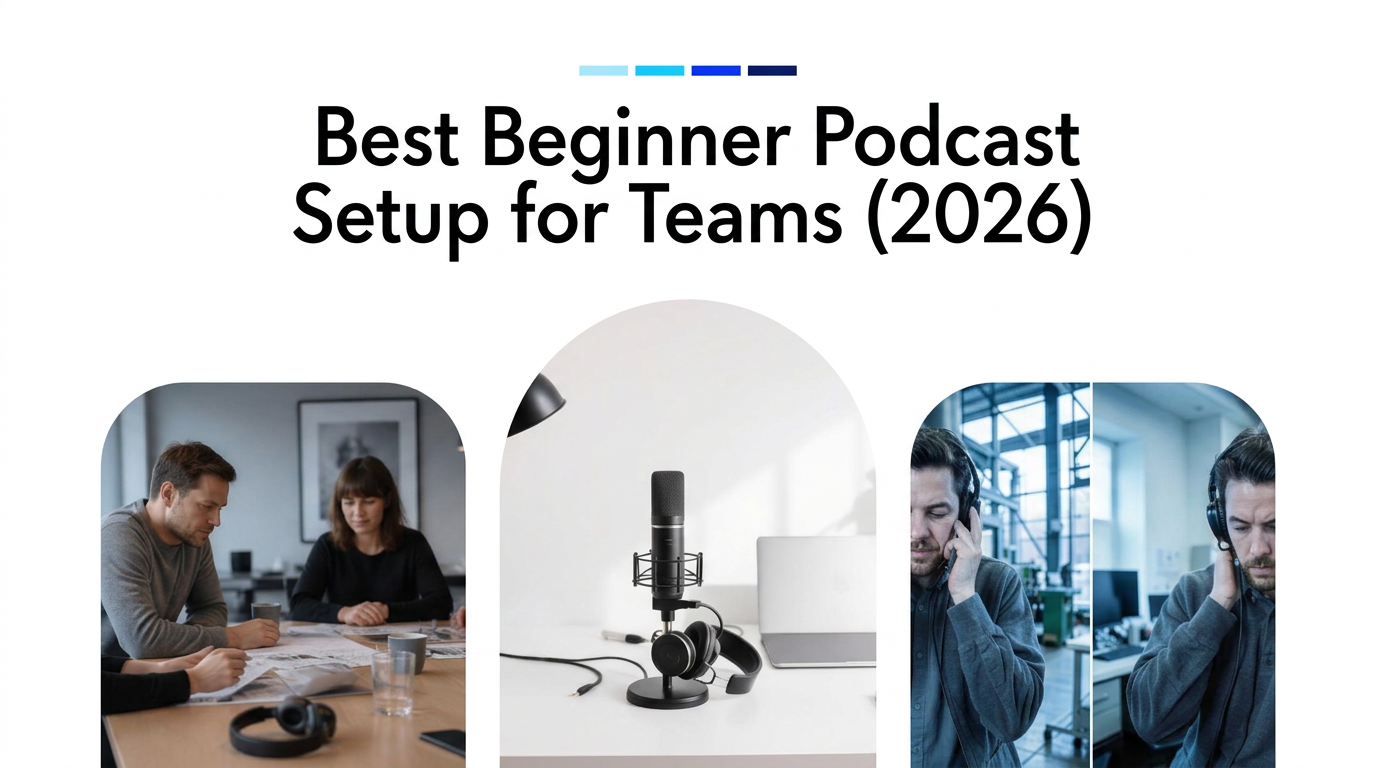
Why Your Corporate Podcast Setup Is Different
A corporate podcast needs a repeatable way to record colleagues, review messages and deliver episodes to the intended audience. Distributed teams add device differences, background noise and handoffs between hosts, producers and reviewers. The first critical step is defining both the kit and the workflow, not buying equipment in isolation.
Professional results demand more than accepting a crackly conference-call recording without checking it. Inconsistent levels, echo and clipped speech make a message harder to follow and distract from the speaker. Audio is the heart of a podcast because listeners need intelligible speech when they cannot rely on slides or facial expressions. We do not claim that poor sound is the number-one cause of abandonment, or that USB suits 95% of corporate needs; neither statistic has a supporting source.
Agree on audience, confidentiality, recording consent and an editor and approver. Pilot a short episode with a few regular speakers, then expand once colleagues can reproduce the setup without specialist support.
What To Include In A Corporate Podcast Starter Kit
The 2026 corporate podcast starter kit covers hardware, environment, software and workflow. The following is a deployment recommendation, not a ranked product test or a promise of identical results.
| Component | Distributed Team Starting Point | Why It Matters |
|---|---|---|
| Microphone | One USB-capable dynamic microphone per speaker | Direct computer connection reduces separate devices to configure. |
| Headphones | Comfortable wired, preferably closed-back headphones | Reduce speaker audio reaching the microphone. |
| Support And Connection | Stable stand or boom arm, cable and any adapter | Keep placement consistent and avoid connection surprises. |
| Room | Quiet space with soft furnishings | Reduce room sound before recording. |
| Software | Recording, editing, approval and private publishing tools | Keep files, ownership and access organised. |
| Workflow | Brief, technical test, edit and approval checklist | Make brand quality a repeatable process. |
Microphones: Your Audio Foundation
A USB-capable microphone connects directly to a computer without a separate audio interface. Standardise one or two approved models after testing company laptops, operating-system compatibility, USB permissions, cables and headphone monitoring.
The Shure MV7+ and RØDE PodMic USB offer USB and XLR connectivity and headphone monitoring. The Audio-Technica ATR2100x-USB offers USB-C, XLR and a headphone output, but its US product page lists it as discontinued; consider it only after checking availability and support. These are feature-based examples, not current-price or superiority claims.
XLR microphones need a suitable interface or mixer to connect to a computer. A multi-input setup can suit several people sharing a supported studio. It is less convenient to deploy to a 20-person distributed team because each workstation needs more hardware, configuration and support. XLR is not inherently better than USB; choose it when the recording arrangement justifies the complexity.
Headphones: Monitoring For Clarity
Treat headphones as part of the standard remote-session kit. Computer speakers can play another participant's voice into your microphone, causing echo. Google Meet recommends headphones to help avoid this. They reduce the risk but cannot eliminate every cause of echo. Monitor your voice where the microphone supports it, and check comfort and levels before a long interview.
Recording Environment: Control What The Microphone Hears
Use a quiet room, silence notifications, close windows and keep microphone placement consistent with its instructions. Soft furnishings can help reduce reflected sound. Expensive equipment does not remove the need to manage the room. Shure's recording guidance explains that placement affects tonal balance and room sound, and recommends repositioning or isolation when unwanted sound is a problem.
The Software That Unites Your Team
Introducing Hypecast Studio: Your Remote Recording HQ
Hypecast Studio supports remote recording for corporate teams. Evaluate the session setup, participant tracks, microphone permissions and upload process during a pilot. Separate speaker tracks give editors more control over levels and overlapping speech than a combined file. They do not remove clipping, room noise or the need for a technical check.
Conference-call tools are not automatically unsuitable. Zoom computer recording can save separate participant audio tracks. Its professional audio settings include original-sound and high-fidelity options. Default suppression and echo cancellation can affect full-range capture in some situations. Compare a test rather than claiming Zoom always heavily compresses audio or only produces a mixed file.
Workflow, AI Assistance And Analytics
Hypecast brings recording, editing, hosting and reporting into a corporate workflow. Use transcript and waveform editing to prepare an episode, then have a named reviewer check accuracy and sensitive information. Hypecast AI supports AI-assisted audio creation and translation. These capabilities are not guarantees of automatic noise removal, flawless editing or factual accuracy. Review scripts, translations and pronunciations before publishing.
Use audience analytics to assess reach, listen-through and return listening alongside voluntary feedback. Compare episodes and audience groups to identify useful topics and practical lengths. Listening metrics are not proof of motivation, learning or business impact; keep individual performance monitoring out of the programme.
Integrations To Coordinate With IT
- Identity: Hypecast supports SSO and SAML. Confirm configuration, access removal and guest rules. Do not assume SCIM or a specific MFA model without written confirmation.
- Microsoft Teams And SharePoint: Coordinate links, permissions and discovery using the Teams and SharePoint options. Linking from a channel does not prove native synchronisation.
- Employee Apps: Test employee-app discovery on managed phones and shared devices.
- Podcast Apps: Confirm the Spotify and Apple Podcasts options, plan availability and onboarding. Public publishing and private RSS require different access decisions.
- Project Management: Track briefs and approvals in your existing tool if useful. This guide does not claim a native Asana or Trello integration.
Security And Compliance Essentials For Enterprise Podcasting
Hypecast's security page states ISO 27001 certification, customer-data storage in Germany and EU processing, SSO/SAML, workspace roles and authenticated listeners. Reporting is aggregated rather than a named-listener history. Request the certificate, data processing agreement, sub-processor list and data-flow documentation.
Document who can record, approve, publish and listen; how access ends when somebody leaves; retention; and any alternative agreed hosting location. Request written details of transport and storage encryption, audit-event coverage, exports and provisioning. Do not infer end-to-end encryption, SOC 2 certification, SCIM or particular audit-log features from a general security statement.
Involve your privacy lead and, where required, the works council. Agree analytics purpose, aggregation and retention. Certification does not replace your organisation's review. NIST's zero-trust guidance supports evaluating identity and access explicitly rather than trusting network location alone.
Recording An Episode With A Distributed Team
- Brief: Define audience, outline, recording permissions and reviewer.
- Prepare: Share joining details and the kit checklist; check device permissions.
- Test: Record and replay a sample from every speaker. Check levels, echo, room noise and tracks.
- Record: Keep microphones in position, wear headphones and leave pauses for editing.
- Edit: Review tracks and transcript, adjust levels and check AI-assisted output.
- Approve: Obtain editorial and confidentiality sign-off; confirm title, description and accessibility material.
How To Publish And Where Employees Can Listen
- Choose Visibility: Decide on internal or deliberately public content. Never select public RSS for confidential material.
- Prepare: Upload approved files, description and supporting transcript; check playback.
- Set The Audience: Assign listeners or workspace access and test with an employee account, not only an administrator.
- Choose Delivery: Use authenticated listening, individual private feeds where enabled, or links from Teams, SharePoint or employee apps.
- Test Devices And Access: Check sign-in, playback, feed credentials and access removal on desktops and phones.
- Announce And Improve: Share the episode, collect feedback and review aggregated listening trends.
| Method | Use Case | Access Check |
|---|---|---|
| Authenticated Hypecast Listening | Internal programmes with managed audiences | Validate identity, workspace access and offboarding. |
| Individual Private RSS | Compatible podcast apps where enabled | Test credentials, revocation and cached copies; do not assume DRM. |
| Teams, SharePoint Or Employee-App Link | Discovery where colleagues already work | A link does not make content private; verify destination permissions. |
| Public RSS Or Video Channel | External corporate or branded programmes | Publish only material approved for public access. |
Dedicated podcast platforms focus on audio production and listening workflows. Microsoft Stream/SharePoint or a video platform such as Panopto may suit an existing media environment, but assess audio discovery, feeds, permissions and reporting separately. Microsoft describes Stream's current architecture around SharePoint. Neither an intranet nor a podcast app alone answers every governance requirement.
Common Podcast Setup Mistakes Corporate Teams Make
- Buying Before Testing: Pilot laptops and rooms before bulk equipment orders.
- Assuming Gear Fixes Everything: Placement and room acoustics still matter.
- Skipping Checks: Verify recording tracks and processing rather than relying on a platform label.
- Automating Without Review: Assign an approver for human and AI-assisted content.
- Confusing Discovery With Security: Test actual permissions and offboarding, including feeds.
Sources And Review Method
Reviewed on 22 October 2026. Equipment examples use manufacturer documentation, not price rankings. Google and Zoom documentation supports the echo and recording corrections; Hypecast product and security pages support only the described capabilities. Unsupported percentages and community quotations are not used as technical evidence.
- Shure MV7+; Shure Microphone Techniques.
- RØDE PodMic USB; Audio-Technica ATR2100x-USB.
- Google Meet Echo Guidance; Zoom Computer Recording; Zoom Professional Audio.
- Hypecast Studio; Hypecast AI; Hypecast Analytics; Hypecast Security; Hypecast Integrations.
- Microsoft Stream Overview; NIST SP 800-207.
Read the corporate microphone guide, corporate podcast launch guide and corporate solution comparison for related guidance.